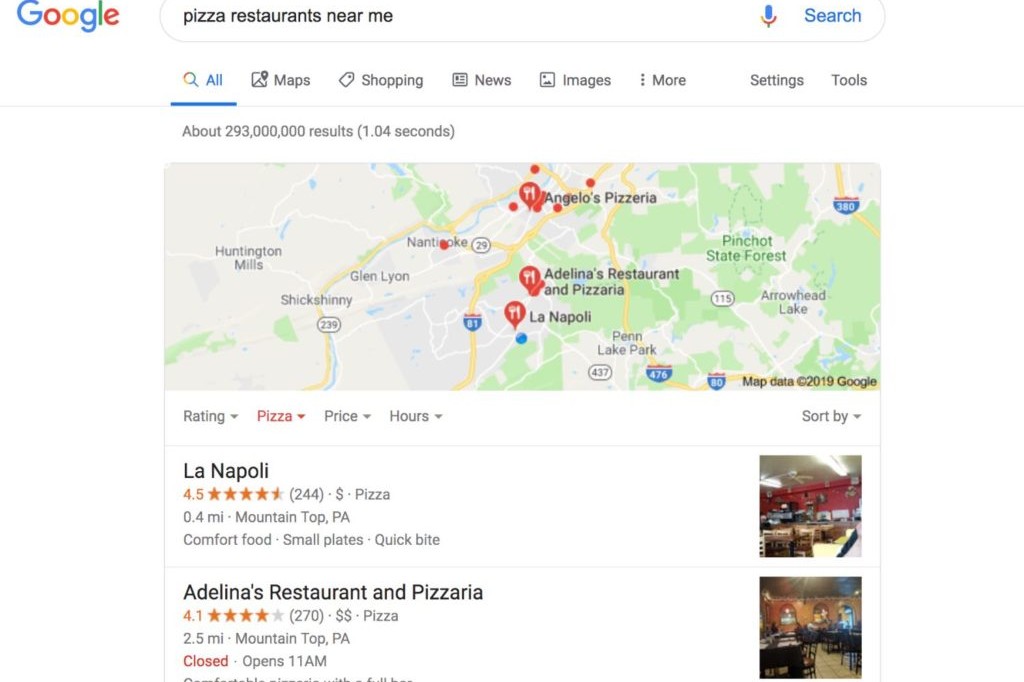
Google Business Profile (GBP) is an essential part of our Hyperlocal Lead Generation strategy for growing your local leads.
Your profile increases visibility in local Google Maps (Map Pack) searches, as well as on AI platforms such as Google’s own AI Overview and even ChatGPT.
Optimizing your Google Business Profile (formerly Google My Business) is an absolute must nowadays, not only for local businesses searching for a free source of local leads that drive calls, clicks, and in-store visits, but also for major brands because those Google Reviews are essential to brand strength and authority (and AI searches will show them).
This guide will walk you through the basics of GBP, including why it’s effective for local businesses, and show you how to set up and optimize your profile.
What is Google Business Profile?
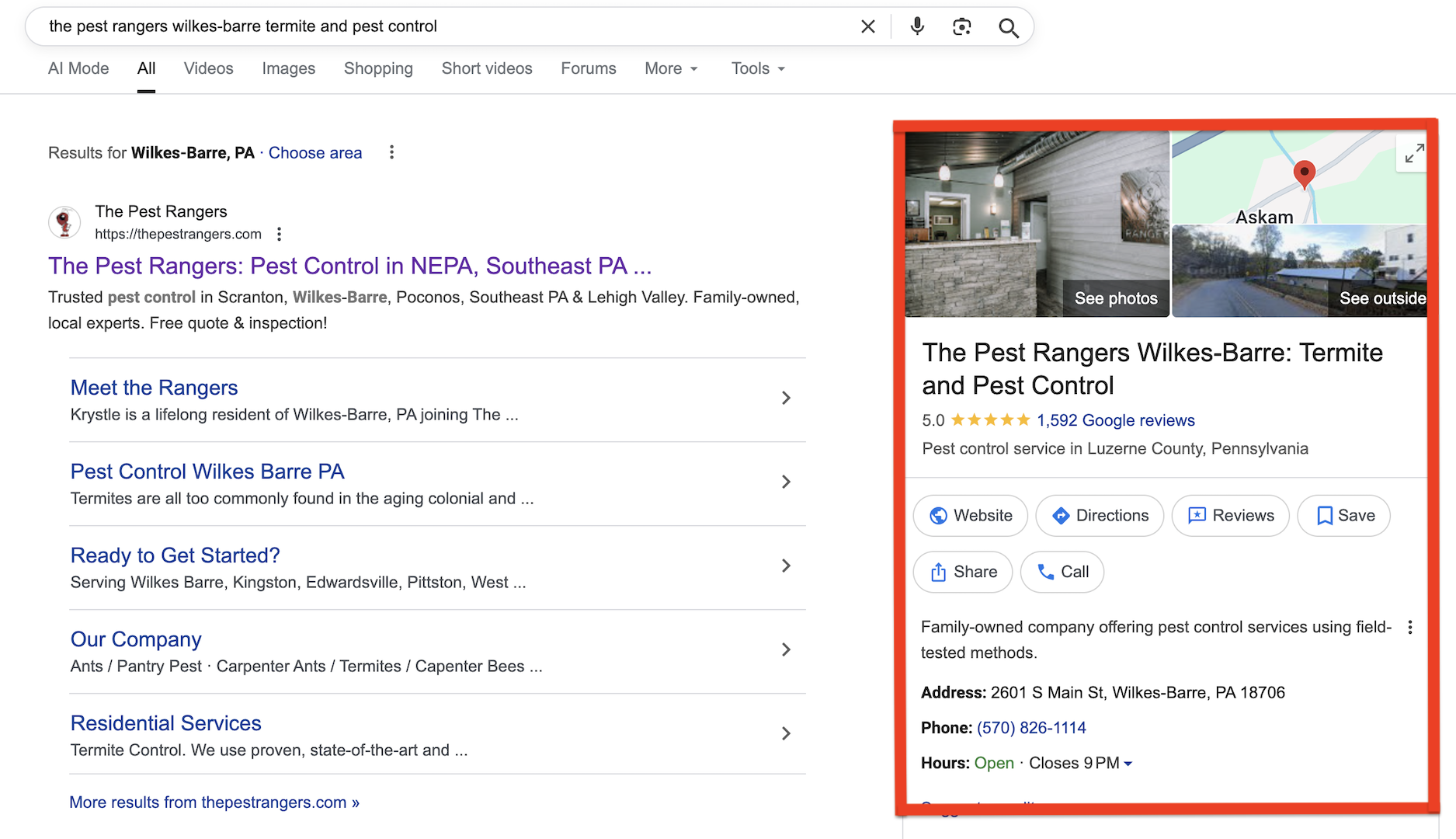
Google Business Profile is an organic (aka, free) business listing available on Google search engine result pages (SERPs) for branded and local searches.
These listings provide detailed information about your business and allow people to contact your business via Google Maps, website clicks, or a phone call. Optimizing your Google Business Profile is an effective strategy of local SEO for contractors or any type of local business that wants to get more foot traffic or calls to their business.
Google Business Profile listings are the results that pop up anytime you search for a company’s brand name or use a “near me” search.
 These results also show up in local Map Pack results for local commercial searches.
 Note: Your Google Business Profile result is separate from your actual website result found in Google SERPs, as it’s very common to have both populate for the same search results.
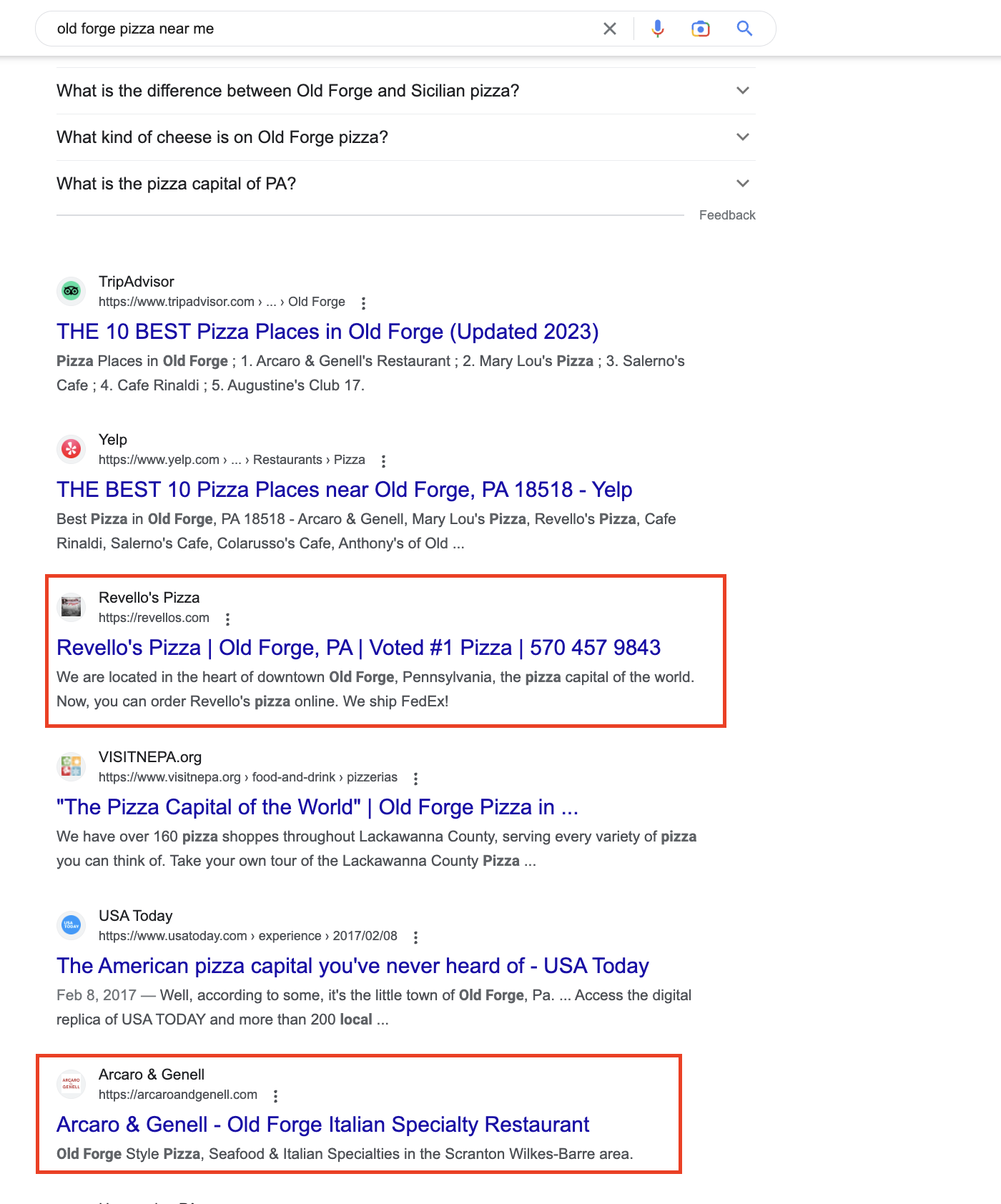
The Benefits of Google Business Profile
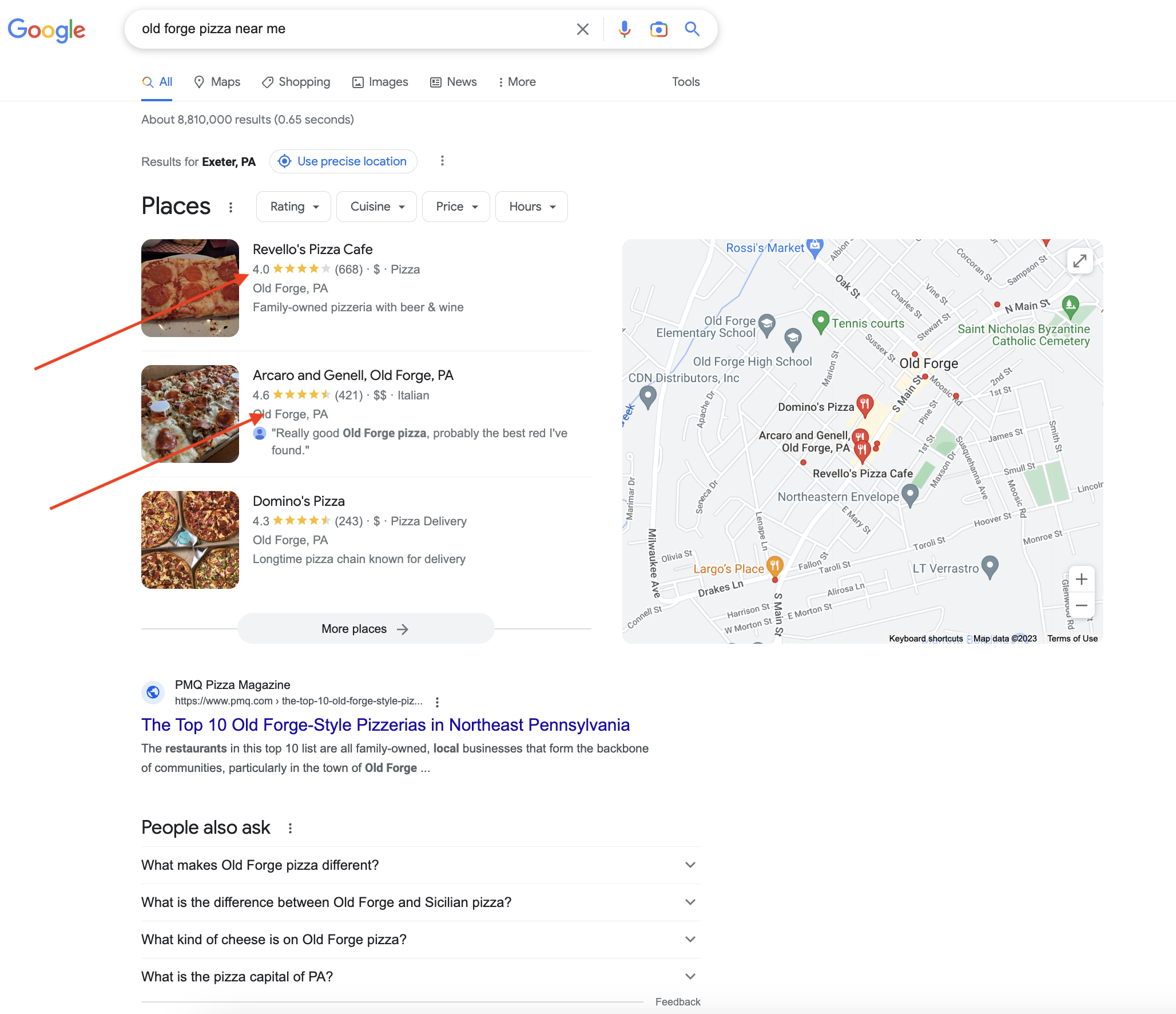
The primary benefit of Google Business Profile is to provide users with an easy way to contact or locate your business. By providing users with that additional touchpoint, it shrinks and simplifies the path to purchase or service for people in your local area.
As you can see above, having multiple results for the same keyword search can increase your brand exposure and click-through rate.
Additionally, mobile searches are more likely to click on Google Business Profile listings, which let them get directions on Google Maps or call your business directly.
Google Business Profile also comes with many features, such as images, products, posts, and reviews, that allow users to engage with your business and learn more about it.
Reviews are particularly important because establishing a good review profile can increase your trustworthiness and local 3-pack ranking when people conduct local searches.
Additional benefits of Google Business Optimization include:
- Increased click-through rate
- Simpler conversion paths
- Providing easy contact information
- Simple setup
- Allowing you to engage with users via posts and reviews
- Increased trustworthiness (the better the reviews you get)
Optimizing your Google Business Profile will help you rank higher in local searches, build trust with potential customers, and bring more leads through your door.
How to Verify Your Google Business Profile
Google Business verification unlocks full control of your listing, drives visibility, enables features (reviews, posts, messaging), and avoids being invisible or limited in the local 3–pack.
Google is tightening verification, so, more than ever, it will check that your address is real, signage exists, the listing is consistent, and you match what you claim. This can delay the process for many businesses and even require you to contact Google directly to complete verification.
Here are some ways to complete verification and what to do if you encounter any issues.
Step 1: Log in & locate your profile
- Sign in to your Google Account that is (or will be) connected to the business.
- Navigate to https://business.google.com or search your business name + city via Google Maps/Google Search.
- If your business listing already exists, claim it. If not, add it. Ensure your Business Name, Address, Phone (NAP) are correct and consistent with your website and citations before starting. Minor mismatches often trigger delays.
Step 2: Choose the “Get Verified” option
- In your profile’s dashboard under the “Verify” or “Get verified” button, Google will present the method(s) available for your business. Note: you cannot always pick your method — Google automatically determines what options you see based on your business type, region, profile age and past changes.
- Common methods (2025 update) include:
- Phone/SMS: If available, enter the phone code once you receive the call/text. Works fast.
- Email: Similar to phone; Google sends a code to the business email. Choose a domain matched to your business if possible.
- Video verification: Increasingly common, especially for new listings or address changes. You may be requested to shoot or join a live video: show your business exterior (street sign, nearby landmarks), interior/operations (equipment, staff, signage), and prove you manage the business (keys, registers, goods).
- Instant verification: If you’ve already verified your website in Google Search Console using the same account and you meet eligibility, sometimes the profile is verified immediately.
The postcard verification method was discontinued by Google a few years prior.
Step 3: Enter your code / wait for approval
Once you enter the code (phone, email) or complete the video call/recording, Google reviews your submission. Approval can be nearly instant in some cases, or take up to 5 business days (or longer, depending on region).
After verification you’ll receive a confirmation email.
Can You Use a PO Box for My Google Business Profile?
No, a PO Box violates Google’s guidelines. Here’s what you need to know:
According to Google’s address guidelines: “P.O. boxes or mailboxes located at remote locations aren’t acceptable.”
If you only have a PO Box, Google will request heavier verification (video/live proof). But you will most likely risk rejection.
What customers commonly do instead is use their physical business address (if available) or set their listing as a Service-Area Business (SAB): you can hide your address from the public and list the service area you cover. You still need a physical address for verification, even if it’s a home address.
Should I List My Home Address for Google Business Profile
Using your personal address for your Google Business Profile depends on your comfort level with displaying this information privately.
Having a physical location on Google Maps does improve your ability to rank in local geographic searches, as Google orders results by distance/location.
If you don’t have a business address and don’t want to use your personal information, you can set your listing as a Service-Area Business and provide all of the service areas you operate in to increase your chance of ranking for local “near me” searches.
How to Optimize Your Google Business Profile Account
Once verified, you will need to properly optimize your profile for appropriate visibility and to improve rankings in local geographic searches.
1. Set Up Your Profile
Optimizing your Google Business Profile is relatively easy and straightforward. Here are a few key details you will need to fill out.
-
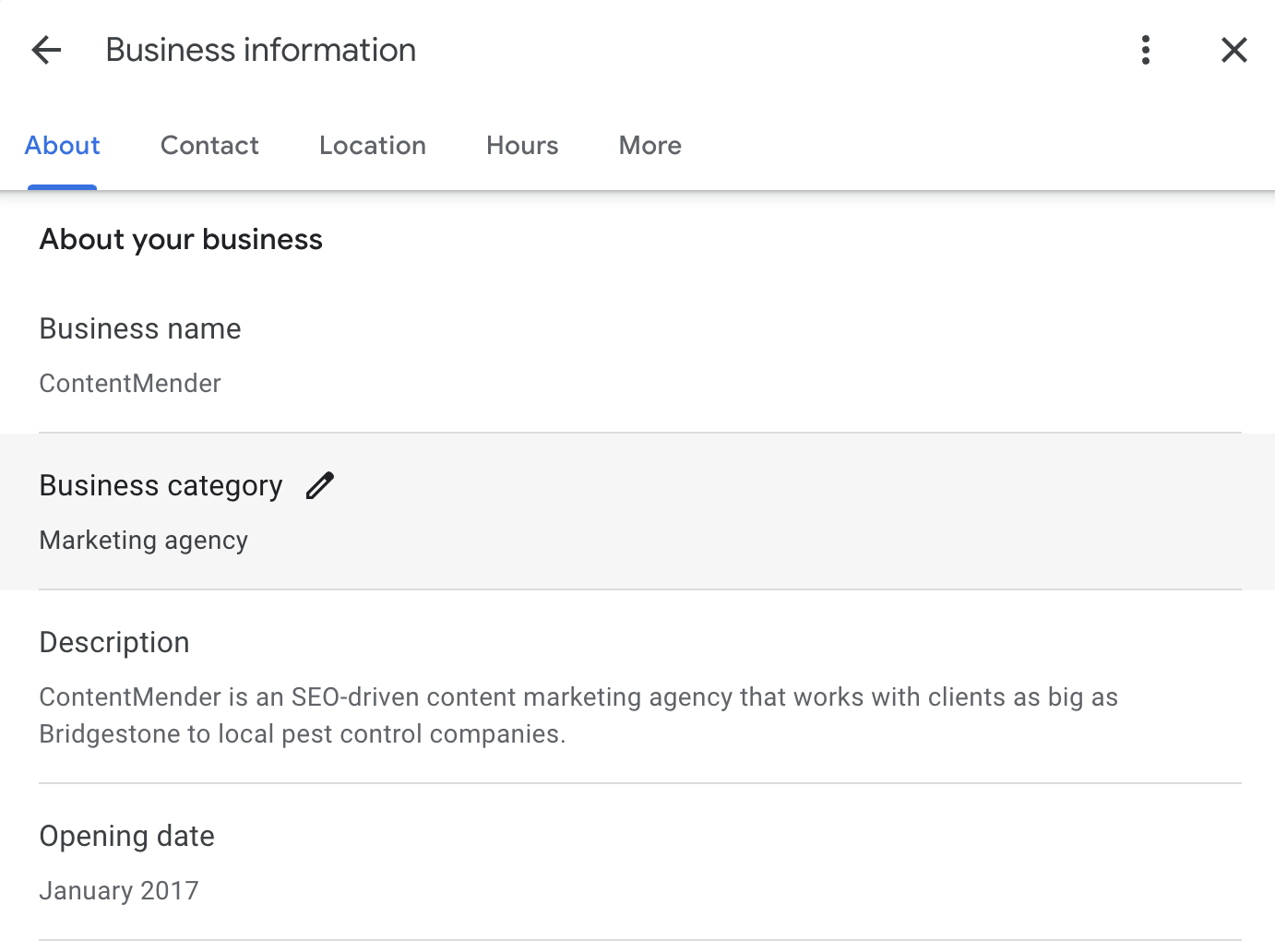
Add an About Section
Go to the Google Business Profile website or simply Google your own business name, and you’ll be able to edit your profile from the dashboard provided.
Click on Edit Profile and write a brief description of your business in the About section.
Beneath that, you can also add important contact information, such as your business’s phone number.
-
Choose a Service Area
Note: Creating individual profiles for each location will make more sense if you have multiple business locations.
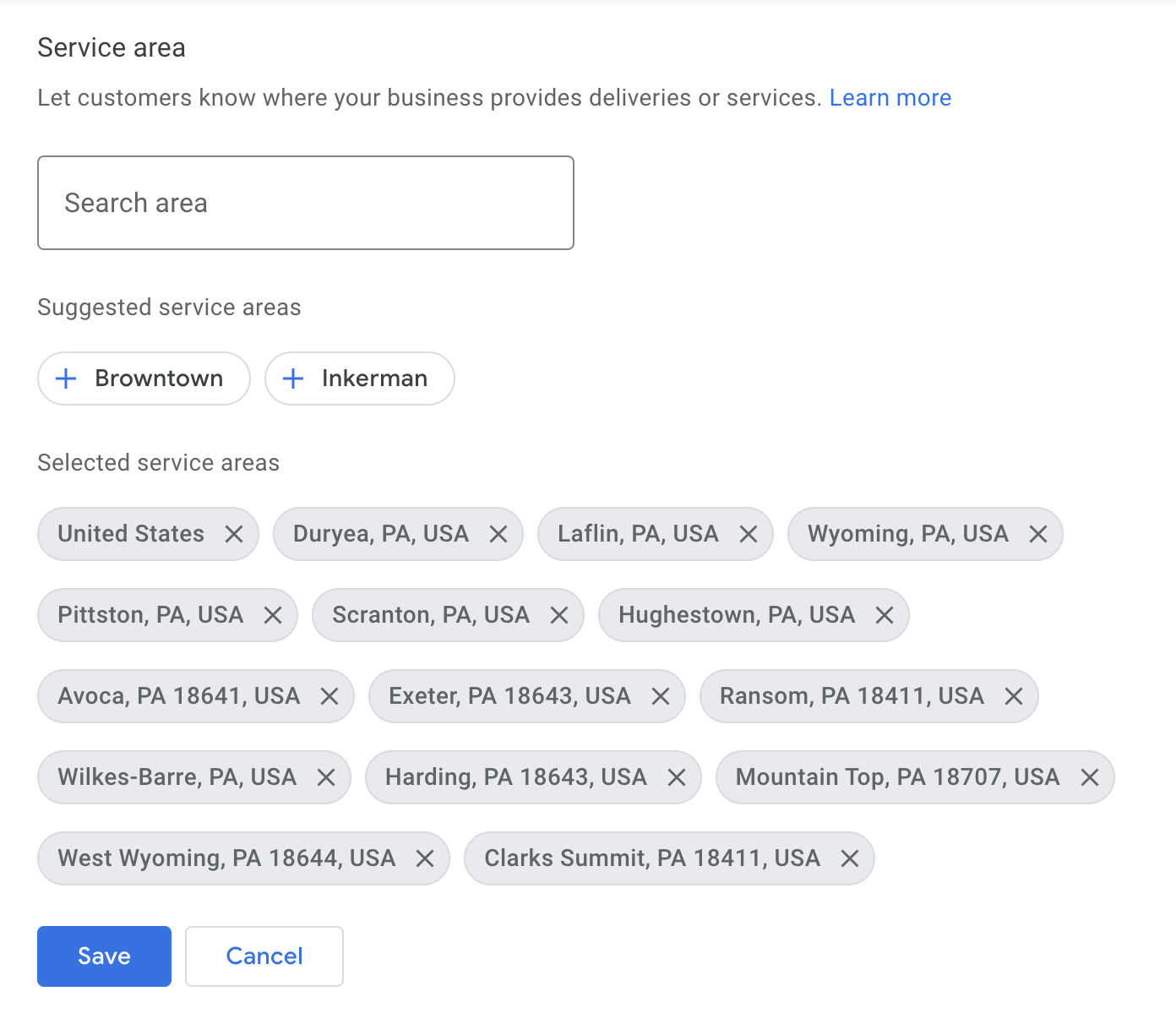
Google Business Profile allows you to enter up to 20 service locations that your business services.
Service areas allow your business to rank for local ‘near me’ searches conducted in those areas.
For Content Mender, we focused on local towns close to our business and also included broad service areas because we operate online and globally.
-
Add Business Hours
Adding business hours helps your business rank for ‘near me’ searches within those hours.
Google Business Profile also adds helpful categories, such as “brunch,” “dinner,” or “takeout,” which are very useful for restaurants and local retail stores.
-
Fill Out Extra Categories
Add extra descriptive features of your business, such as whether your business is black-owned or wheelchair friendly. Other service options include a button to book by appointment only.
2. Add Descriptive Products
Google Business Profile offers individual product/service listings that allow you to advertise product prices and for people to click directly on product landing pages.
They will appear as a slider in the middle of your listing on the right side of the search. Users who click on a product will be greeted with a brief (1000-character max) description you write.
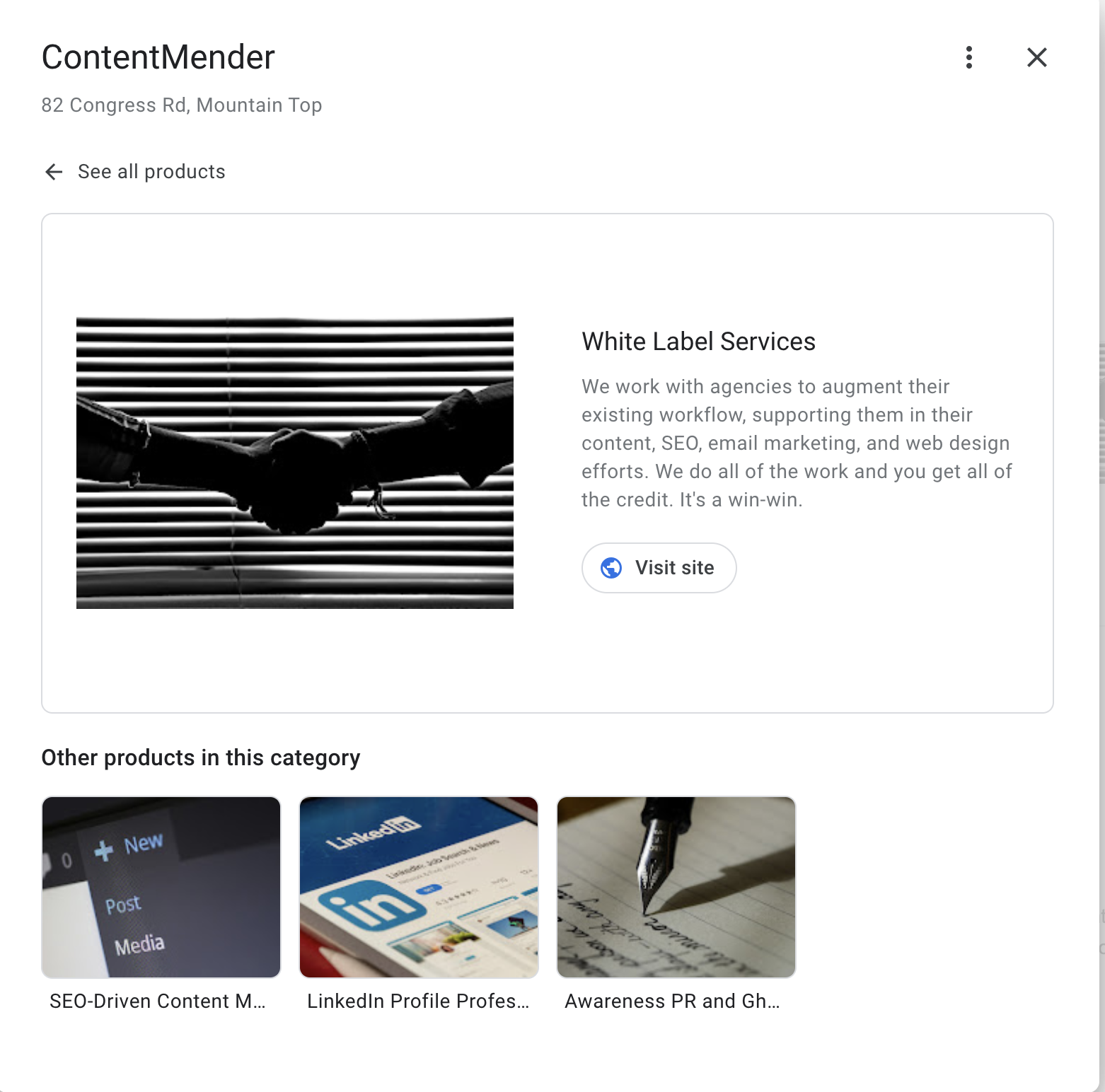
To add a product, complete the following steps:
> Add a product name.
> Select a product category (you may need to create one).
> Write a brief description.
> Add a price (optional).
> Add your landing page URL (optional).
Likewise, there is an ability to create individual service categories for mobile devices that are right next to the products.
3. Optimize with Proper Images
Images are one of the most important parts of your business, regardless if you are product or service-based.
Photos can be added manually and will populate your results when people search for your business, or they can be added via user-generated reviews.
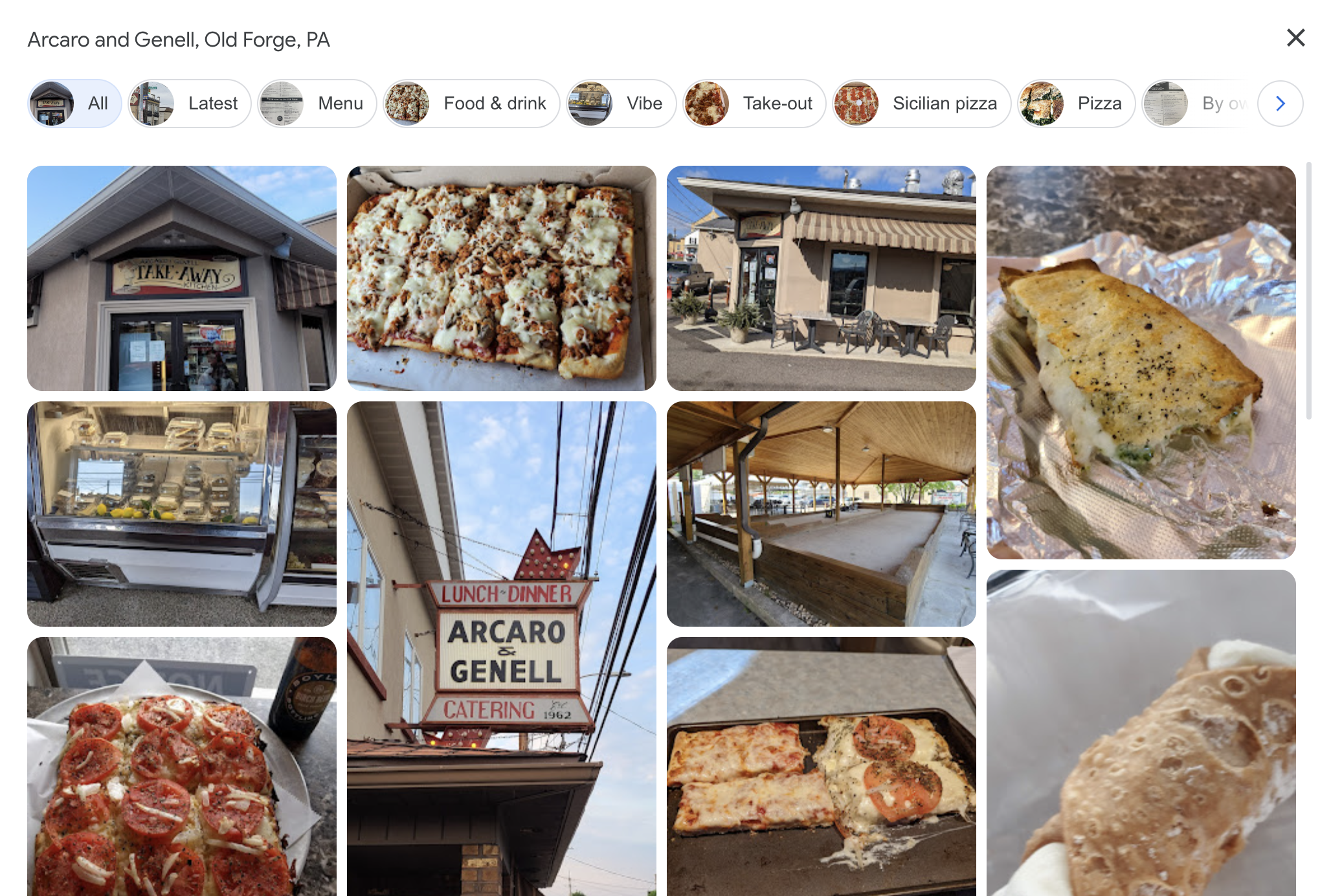
We recommend adding photos that help sell your business and most accurately represent your products.
Other photos, including exterior photos of the business, help people find the business. Including a logo and a photo of your employees also helps people become more engaged with your brand and humanizes the people behind your business listing.
Tip: Encourage users to leave photos or videos in reviews as these forms of media commonly pop up in local searches and help nudge your rankings higher.
4. Add Updates
One unique feature that Google’s business listing provides over most other services is the ability to add posts and updates. For example, if your business recently changed its menu, changed ownership, or moved locations, adding an update can alert people who may not be aware.
Updates are entirely optional but provide a unique way to engage with your local customers.
Now that your Google Business Profile is set up, it’s time to start managing it.
Tips to Manage Your Google Business Profile
Answer Any Q/As
Google Business Profile features a unique Q/A section on the right-hand side of desktops and beneath the photos tab on mobile devices.
This Q/A tab not only allows businesses to respond to customer questions directly but also allows other Google Maps users and local guides to answer them.
We recommend responding to questions when pertinent, even if others have responded, to cultivate engagement.
Monitor and Respond to Reviews
Google reviews are arguably the most important reviews on the web because they are the most visible.
According to research, nearly 99% of people consult reviews before making a purchase, and 49% trust online reviews the same way they would a recommendation from a loved one.
Luckily, Google provides a link you can include in emails and on your website to encourage reviews.
Furthermore, it’s important to respond to reviews online, even if they’re negative. One study found that online responses to reviews increased the business’s trustworthiness over businesses that did not respond to reviews.
Continue to engage with customers and cultivate more reviews to increase your business’s loyalty and trustworthiness.
Enable Chat and Alerts
Google Business Profile allows users to chat directly with businesses anywhere, anytime. Enable chat and notification alerts so you can respond instantly to any messages over your account.
Consult the Analytics
Check Google Business Profile’s analytics to see how users interact with your business listing. Google will track metrics, such as calls, website clicks, and the number of people who ask for directions.
Reoptimize from Time to Time
Finally, it doesn’t hurt to update your Google Business Profile every year as your business evolves. Whether you have added more locations or products to your menu, you should continually update your listing and engage with users on Google’s business platform.
Google Business Profile is an easy-to-use platform designed to support local businesses. Optimize your profile using these simple strategies so customers know how to find and contact your business.
If you need help optimizing your Google Business Profile, contact ContentMender or visit our service page to get started.
Google Business Profile FAQs
Is Google Business Profile free?
Yes, Google Business Profile is entirely free. All you need to do is verify your business using one of the methods Google provides.
What is the difference between Google Business Profile and Google My Business?
Google Business Profile is the new name for Google My Business and includes many of the same features, with some minor updates made to the platform. All Google My Business users will have access to a Google Business Profile account.
Do you need an address for a Google Business Profile?
Yes, Google Business Profile does require a recognizable address that Google can find in order to verify your business. If you don’t have a physical address you want displayed to the public, you can set your profile to a Service-Based Business without an address.
How long does Google Business Profile verification take?
If you verify your business via video, it could take between one and five business days to verify your business.
Why does my business not appear on Google Maps?
If you have entered incorrect information or if your business falls outside the local search parameters of a query, it won’t show up on a user’s map for the 3-pack of Google Maps results.